 Back
Back
Edit Lesson Notes
You can edit Lesson Notes at any time before they are finalised. Sending notes before the lesson starts only shares them with the student — they remain editable and can be re-sent. Once the lesson has started, sending finalises and locks the notes, and they can no longer be modified.
How to Edit a Lesson Note
- Go to the Notes page from the main navigation.
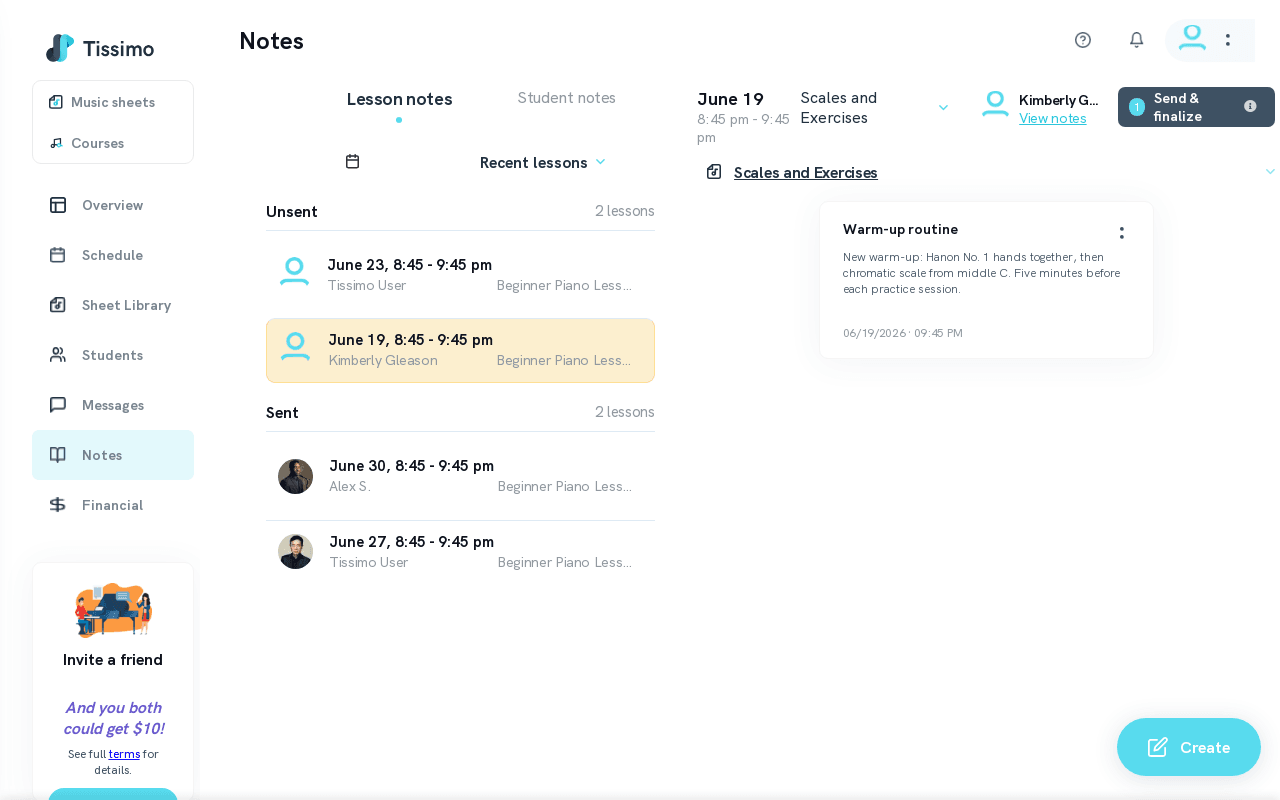
- Locate the lesson in the Unsent section under Recent or Upcoming lessons.
- Click on the lesson to expand it and reveal its notes.
- Click the two-dot menu (⋮) next to the note you want to change.
- Select Edit from the dropdown.
- Make your changes and click Submit.
What Can Be Edited?
- Note title
- Note category (e.g., Repertoire, Scales and Exercises, Ear training)
- Note body text
- Repertoire piece association
What Cannot Be Edited?
- Notes that have been finalised (sent after the lesson has started) cannot be edited or deleted.
- If a note was finalised in error, contact Tissimo support for assistance.
Tips
- Draft notes during or right after the lesson, then review and refine before sending. You can also add notes in advance for an upcoming lesson using upcoming lesson notes.
- Reviewing last week's sent notes before editing this week's is a good habit for recurring students.
- For notes about a student's overall progress rather than a single session, consider using student notes instead. See lesson notes vs. student notes to understand the difference.
Related Articles
- Create Lesson Notes — write new notes for a lesson.
- Send Lesson Notes — finalise and deliver notes to the student.
- Unsent Notes vs. Sent Notes — understand the two note states.

Comments