 Back
Back
Send Lesson Notes
Once you have written Lesson Notes for a session, you can send them to your student. Sending makes the notes visible to the student. If you send before the lesson starts, the notes are only shared — you can still edit and re-send them. Once the lesson has started, sending finalises and locks the notes — finalised notes cannot be edited.
When Can You Send?
- From the classroom: the Send lesson notes button becomes available 5 minutes before the lesson end time.
- From the Notes page: you can send at any time — even before the lesson. Sending before the lesson starts shares the notes without locking them; sending after the lesson has started finalises them.
- Latest: There is no deadline — you can send notes at any time after the lesson.
How to Send Lesson Notes
From the Classroom
- Near the end of your lesson, open the Notes panel inside the classroom.
- Review or create your lesson notes.
- Click Send lesson notes to deliver them to the student.
From the Notes Page
- Go to the Notes page from the main navigation.
- Locate the lesson under Upcoming or Recent lesson notes.
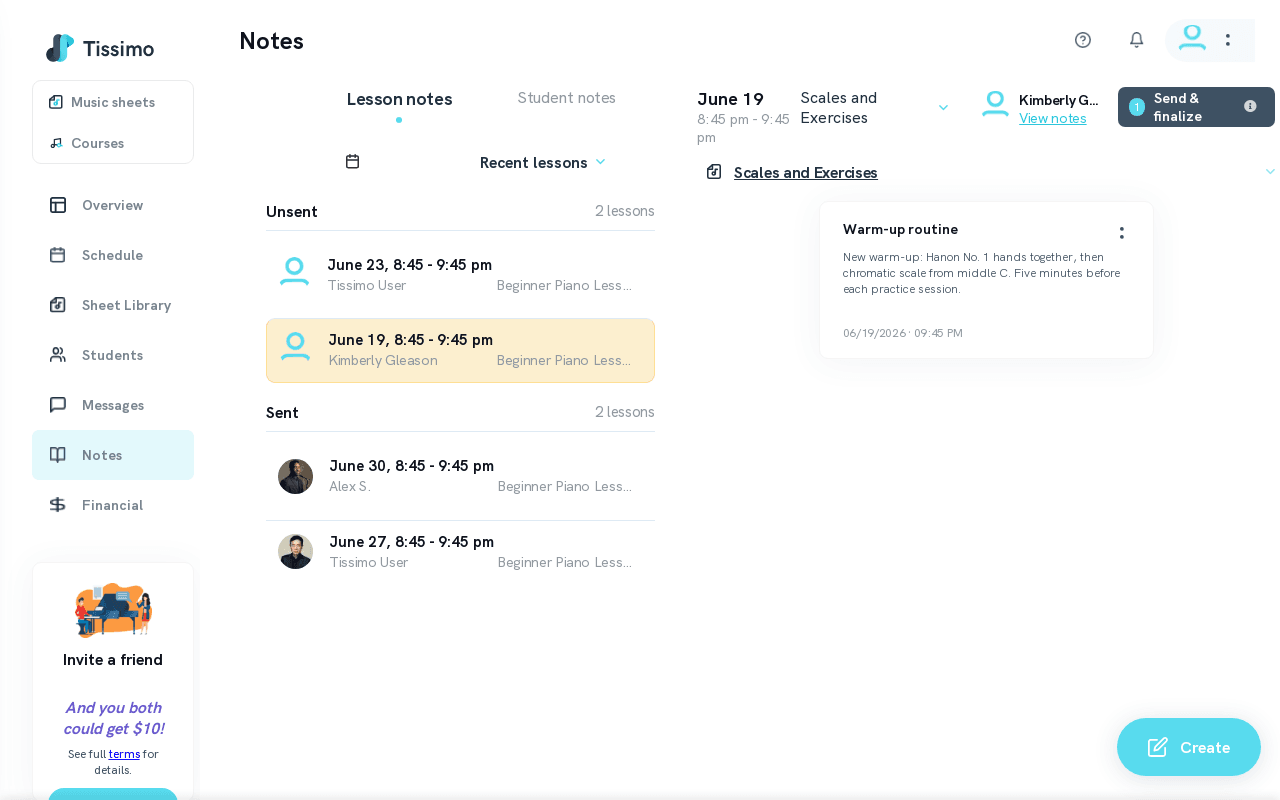
- Click on the lesson to expand it, then click Send (shown as Send & finalize once the lesson has started).
What Happens After Sending?
- The student receives their notes immediately.
- Once the notes are finalised, the lesson moves from the Unsent section to the Sent section on your Notes page.
- You can view sent notes at any time, but once finalised they can no longer be modified.
Related Articles
- Create Lesson Notes — how to draft notes before sending.
- Edit Lesson Notes — make changes before you send.
- View Sent Lesson Notes — review previously sent notes.

Comments