 Back
Back
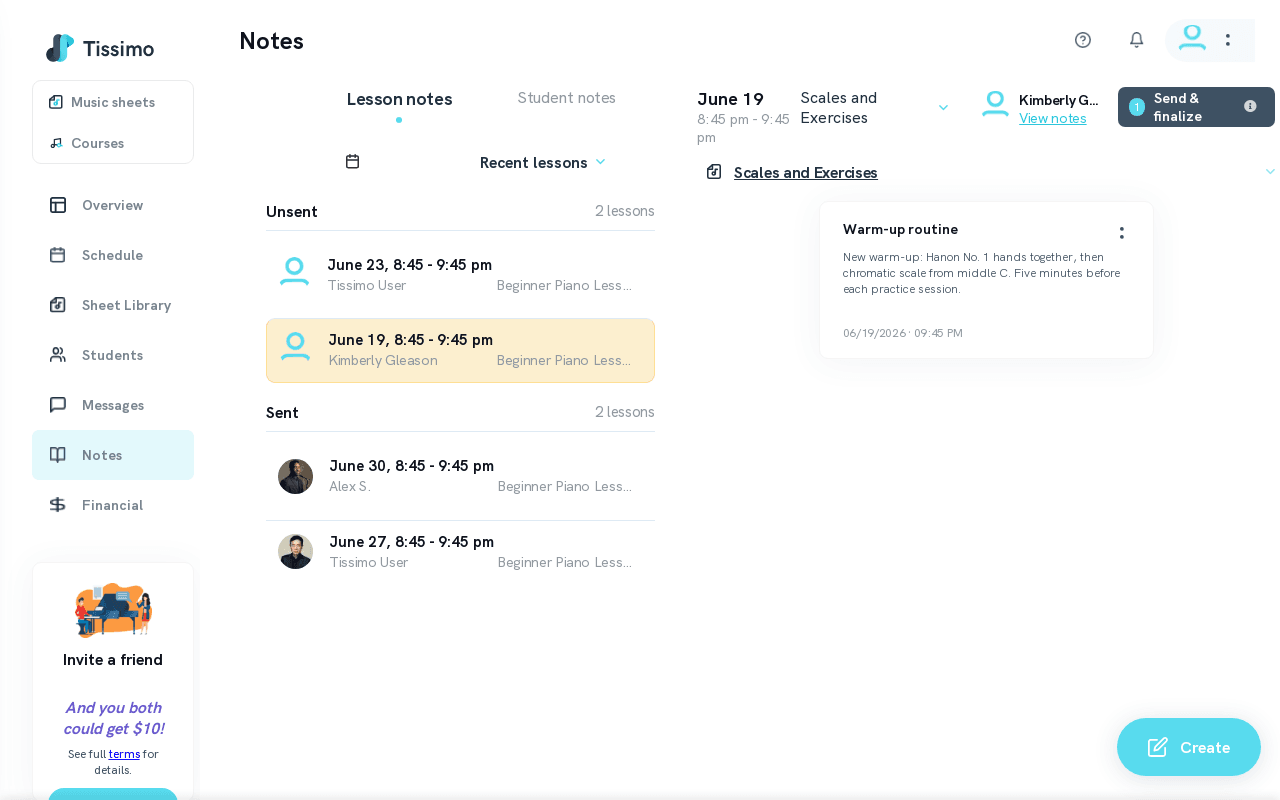
Create Lesson Notes
Lesson Notes are structured assignments you send to students after a lesson. They help students know exactly what to practice before the next session.
How to Create a Lesson Note
- Go to the Notes page from the main navigation.
- Locate a Recent or Upcoming lesson and click on it to expand it, or open the Notes Calendar and select a date and lesson.
- Click Create Note.
- Enter a note title.
- Select a category from the list.
- Type the note text in the body field.
- Click Submit to save the note as a draft.
Note Categories
- Repertoire — pieces to learn or continue working on
- Ear training — listening and pitch exercises
- Music theory — theory concepts to study
- Assignments — general practice tasks
- Scales and Exercises — technical warm-ups and drills
- Technique — specific technique points to focus on
- Other — anything that does not fit the above categories
You can also add your own custom categories with the Add category option.
Repertoire Category
When you select Repertoire, an additional field appears where you can create or select a Repertoire piece to associate with the note.
After Creating
- Notes are saved as Unsent until you choose to send them.
- You can create multiple notes per lesson.
- Edit or delete them at any time before sending.
Related Articles
- Edit Lesson Notes — make changes before sending.
- Send Lesson Notes — deliver notes to the student.
- Lesson Notes vs. Student Notes — understand when to use each note type.

Comments