 Back
Back
Notes Calendar
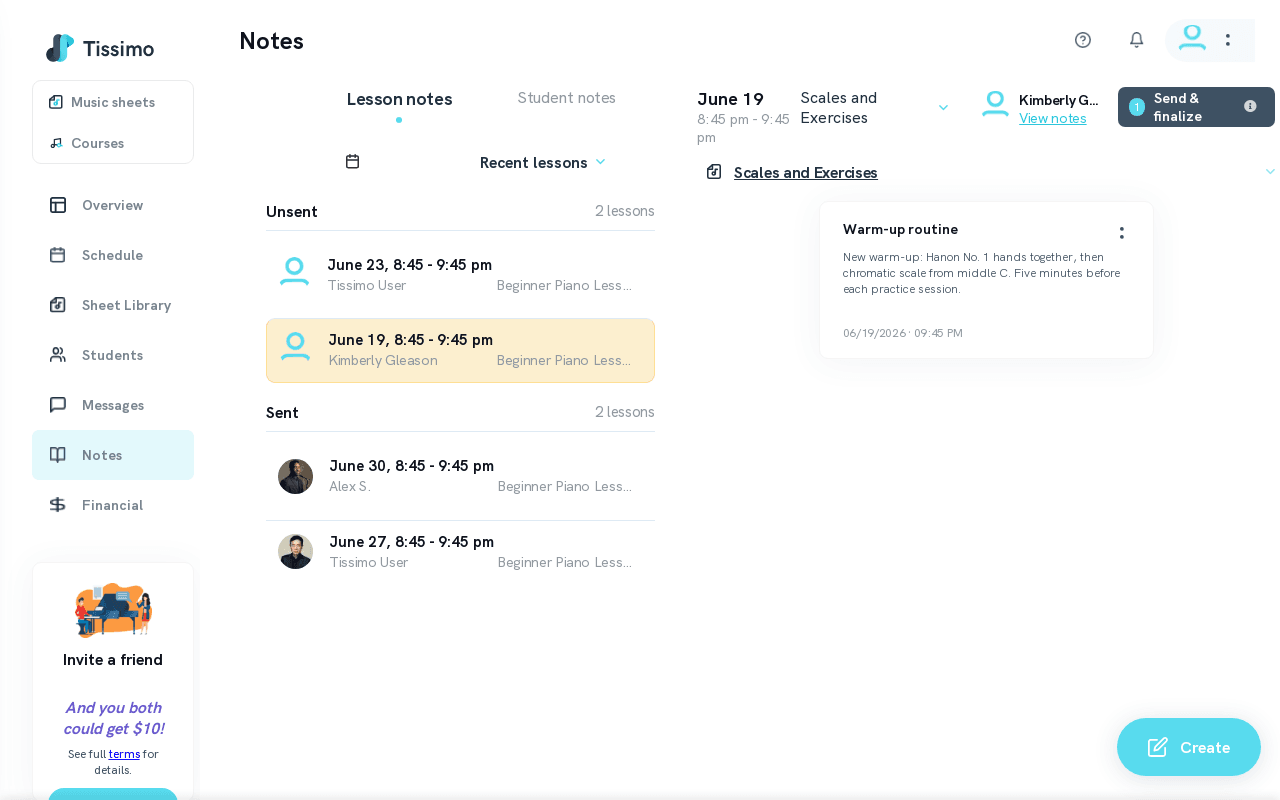
The Notes Calendar gives you a date-based view of your lessons, making it easy to navigate to any past or upcoming session and manage the lesson notes for it.
Opening the Calendar
From the Notes page, click the Calendar icon or select Calendar from the dropdown menu.
Selecting a Date
- Click a date on the calendar to load the lessons scheduled for that day. Days with lessons are highlighted and stay selectable even when they are in the past.
- Lessons for the selected date appear in the lessons list.
- Click on a lesson to expand it and view, create, or send Lesson Notes.
Use Cases
- Reviewing a past lesson: Navigate to a previous date to find a lesson and check what notes were sent.
- Preparing for an upcoming lesson: Jump to a future date, open the lesson, and draft notes in advance.
- Finding a specific session: Useful when you remember roughly when a lesson occurred but cannot find it in the list view.
Tips
- Use the calendar alongside the Upcoming Lesson Notes list for a comprehensive notes workflow.
- Lessons with unsent notes are grouped under the Unsent heading so you can spot them at a glance.
Related Articles
- Create Lesson Notes — write notes after selecting a lesson from the calendar.
- Send Lesson Notes — send notes once they are ready.
- Recent Lesson Notes — browse recent lessons without the calendar.

Comments