 Back
Back
View Sent Lesson Notes
Once your Lesson Notes are finalised (sent after the lesson has started), the lesson is archived in the Sent section. You can review them at any time to recall what was assigned in a previous session.
How to View Sent Notes
- Go to the Notes page from the main navigation.
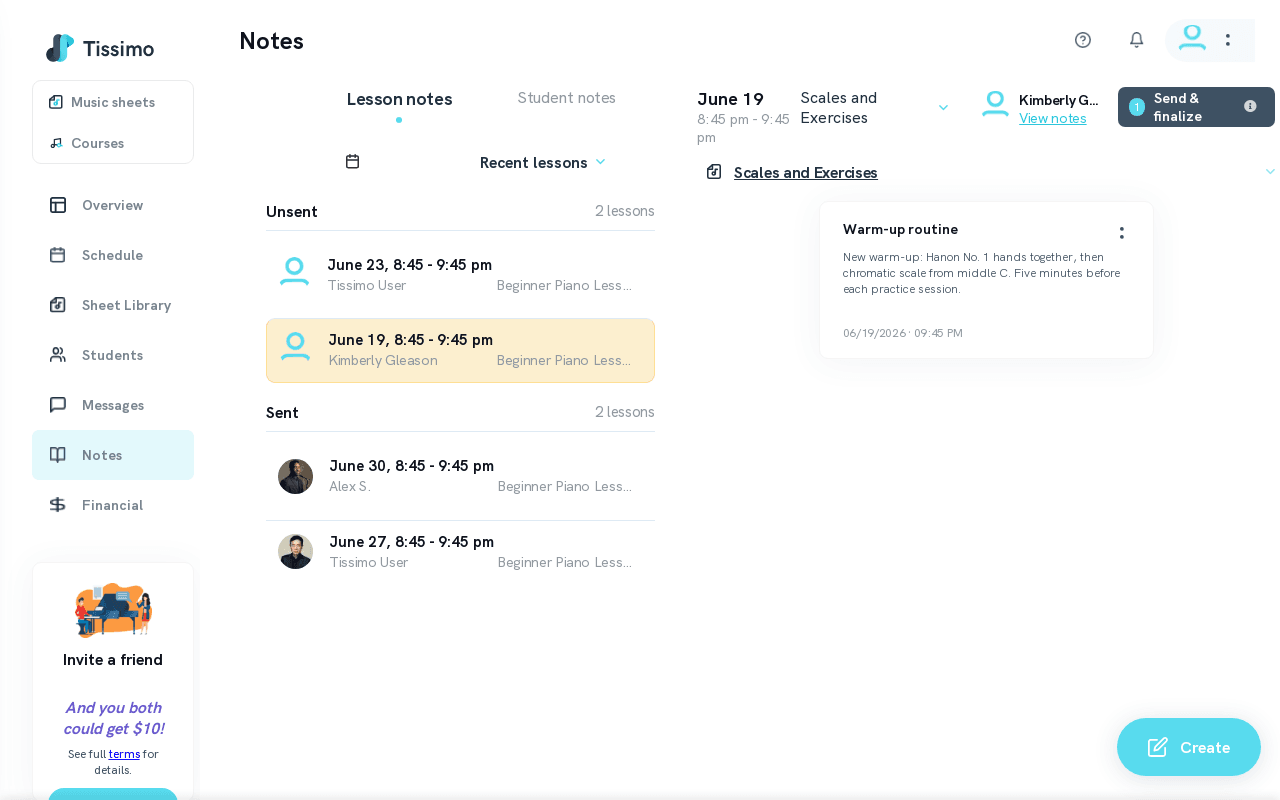
- Under Recent lessons, scroll past the Unsent section — lessons with sent notes appear below in the Sent section.
- Alternatively, open the Notes Calendar, navigate to a past date, and click on a lesson to see its sent notes.
- Click on a lesson row to expand it and display the sent notes.
What You Can See
- Note title and category
- Note body text
- The date and time each note was created
What You Cannot Do
- Finalised notes cannot be edited or deleted. This is by design — once a student receives an assignment, the record is preserved.
Tips for Music Teachers
- Before each lesson, review the sent notes from the previous session to recall what was assigned.
- If a student says they did not receive their notes, ask them to check their Tissimo account under the accessing lesson notes as a student guide.
- To find a specific student's history quickly, visit your Students page and open their profile. You can also use sort student notes to change how your students are ordered.
Related Articles
- Send Lesson Notes — how and when to send notes.
- Recent Lesson Notes — browse the full list of recent sessions.
- Notes Calendar — find a specific lesson by date.

Comments