 Back
Back
Create Student Notes
Student Notes let you document ongoing observations and progress for each student — separate from lesson-specific notes. Creating notes regularly helps you track development over time and prepare more effectively for future lessons. To understand the difference, see Lesson Notes vs. Student Notes.
How to Create a Student Note
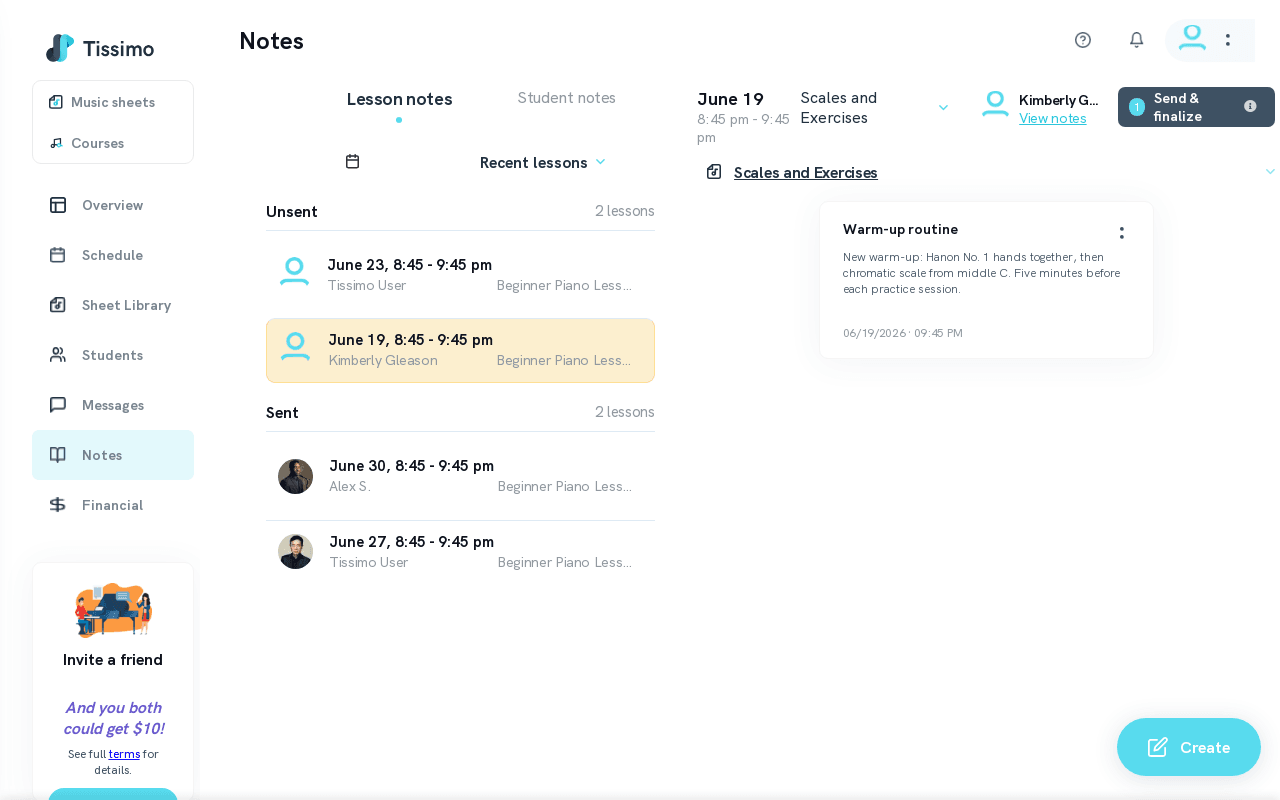
- Go to the Student Notes page from the main navigation.
- Click Student Notes to switch to the student notes view.
- Select a student from the list on the left.
- Click Create to open the new note form.
- Enter a note title — something descriptive like "Progress update" or "Goals for next month".
- Type the note content in the body field.
- Click Submit to save the note.
What to Write in a Student Note
Student Notes are most useful for capturing information that applies across multiple lessons, such as:
- Long-term learning goals
- Recurring technical challenges (e.g., hand position, sight-reading speed)
- Repertoire milestones achieved
- Observations about the student's motivation or practice habits
- Parent communication points (for younger students)
Next Steps
After creating notes, use the Sort Student Notes feature to organise them by student name or note count, making it easy to identify which students have the most recent documentation. You can also view student notes or browse notes by category.

Comments