 Back
Back
View Notes by Category
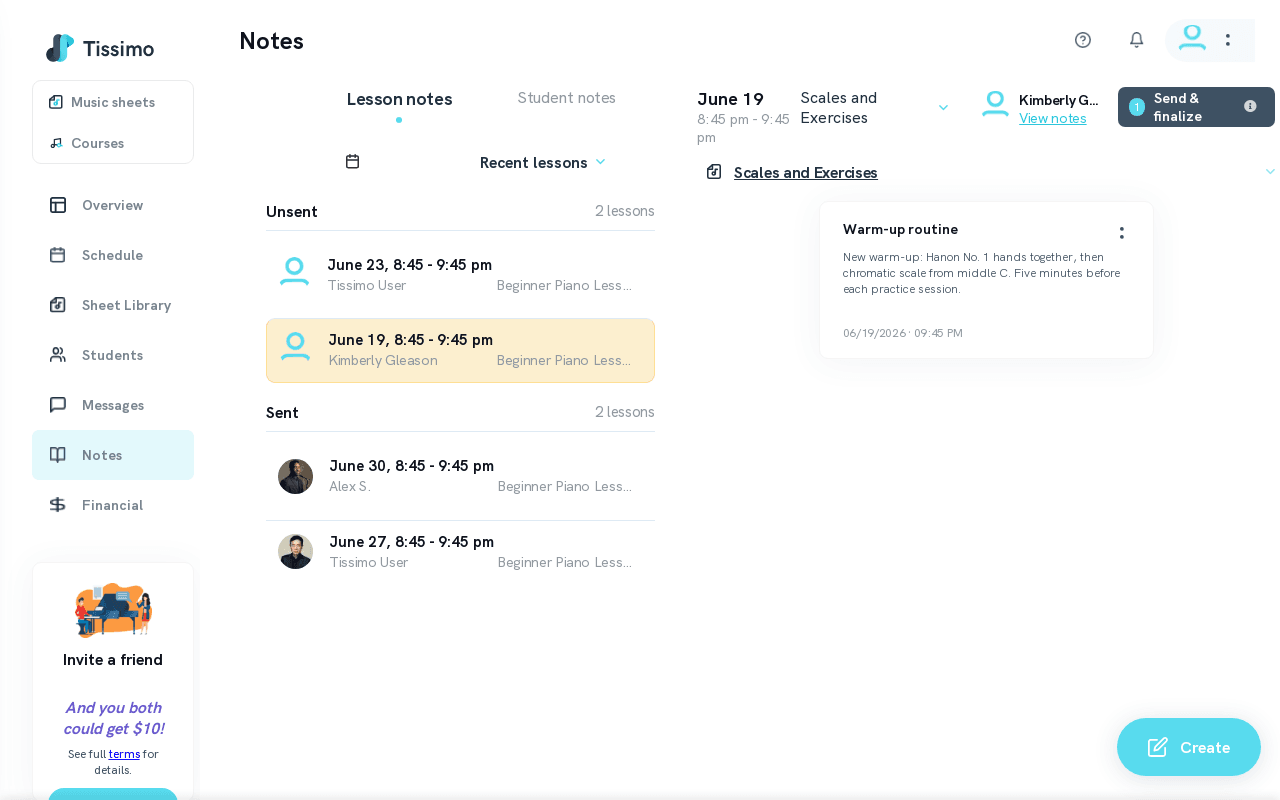
The Notes page lets you browse your lesson notes by category, making it easy to review specific types of feedback or instruction across multiple lessons.
How to View Notes by Category
- Go to the Notes page.
- Select a recent lesson or navigate to a past date using the calendar. To see notes attached to upcoming lessons, visit Upcoming Lesson Notes.
- Click on a lesson to display its notes.
- Notes are grouped under category headings — click a heading to expand or collapse that category's notes.
- The category dropdown at the top of the panel lists the categories available for that student and is also where you can add a new category.
Adding a Custom Category
You can create your own note categories to organise notes in a way that suits your teaching style:
- Click the category dropdown.
- Select Add category.
- Type the name for your new category.
- Click the green checkmark to confirm.
- Your new category will now be available for selection in future notes for that student.
Tips
- Use categories like Technique, Music theory, Repertoire, or your own custom categories to keep notes organised by topic.
- Consistent categorisation makes it much easier to track a student's progress over time. To learn how to create and send notes, see creating lesson notes and sending lesson notes.
- To browse recently sent notes across all lessons at once, see Recent Lesson Notes. For student-specific notes organised separately, see View Student Notes.

Comments