 Back
Back
View Student Notes
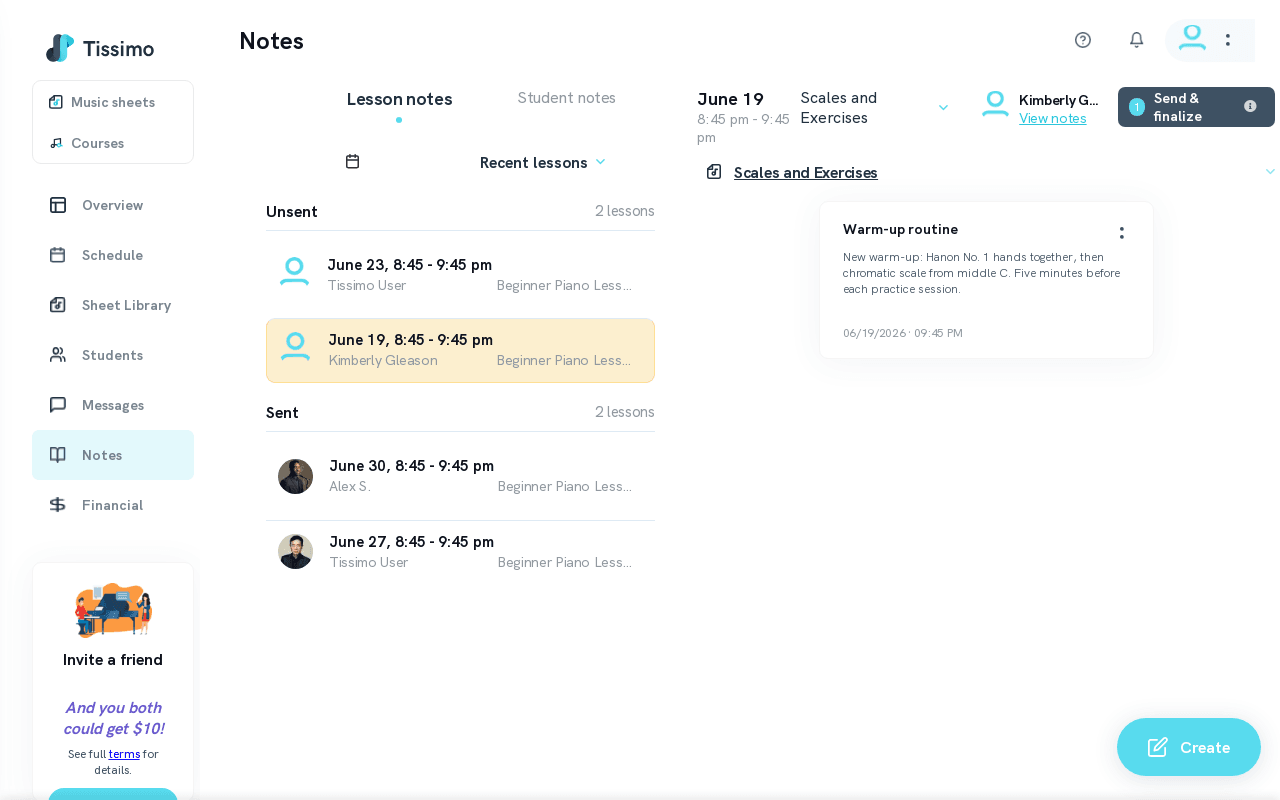
Student Notes are your private notes about each student. They are never visible to students — they exist solely to help you remember preferences, goals, strengths, and anything else relevant to your teaching relationship.
How to View Student Notes
- Go to the Student Notes page from the main navigation.
- Select the Student Notes tab.
- A list of your students will appear. Select a student to see all notes you have written for them.
Sorting the Student List
You can sort the list of students by:
- Student name — alphabetical order
- Number of notes — most to least (or least to most)
Click the up/down arrows to reverse the sort direction. For more details on sorting, see Sort Student Notes.
Tips
- Review student notes before each lesson to refresh your memory on past discussions, assignments given, and individual goals. You can also view a student's full profile and lesson history from the Student Detail page.
- Use Student Notes in combination with Lesson Notes to build a complete picture of each student's progress.
Related Articles
- Create Student Notes — how to add a new note for a student.
- View Notes by Category — filter lesson notes by category to find specific topics quickly.
- Student Lesson History — review past lessons for any student.

Comments