 Back
Back
Unsent Notes vs. Sent Notes
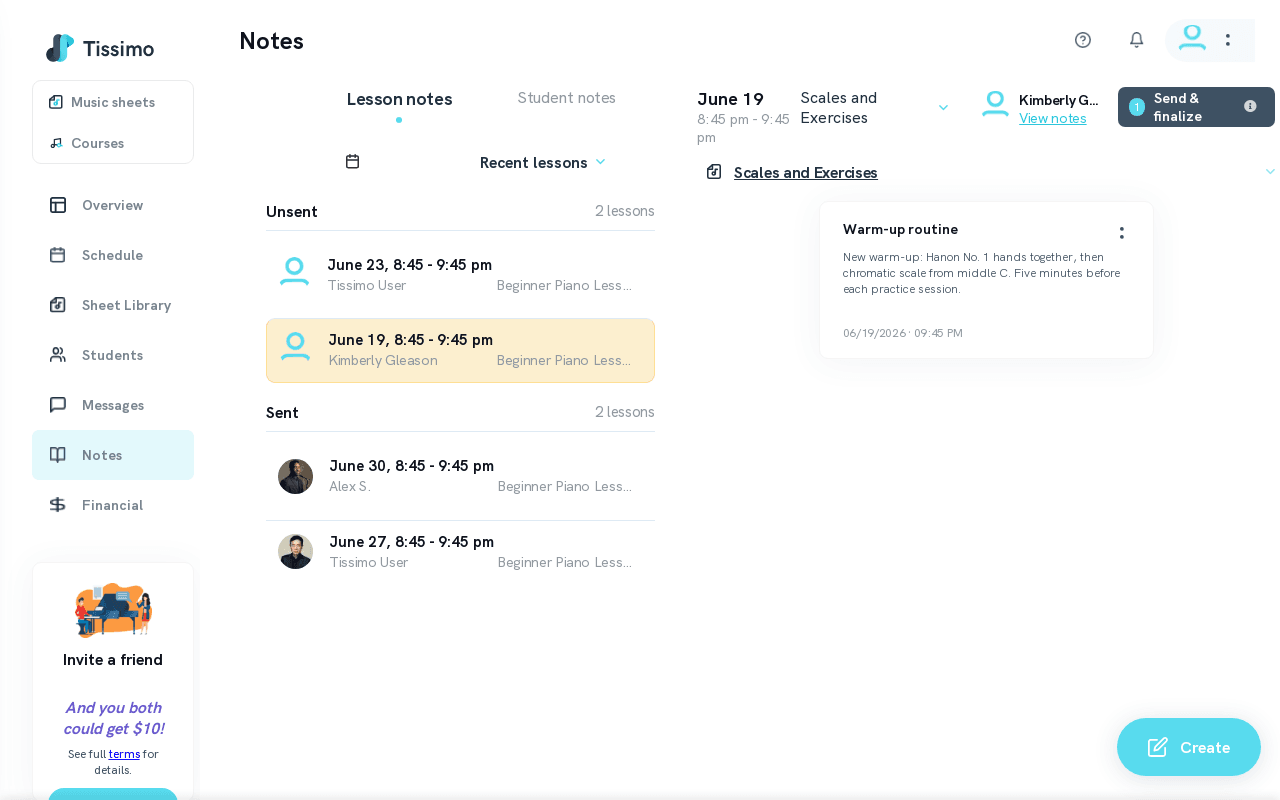
Tissimo separates your Lesson Notes into two clear states — Unsent and Sent — to protect the integrity of what students receive. You can manage all lesson notes from the Lesson Notes page.
Unsent Notes
Unsent Notes are lesson notes that have not yet been finalised. They are fully editable.
- Appear in the Unsent section under Recent and Upcoming lesson views on the Lesson Notes page.
- Can be created, edited, or deleted at any time before they are finalised.
- The student cannot see them yet — unless you have already shared a preliminary version before the lesson, in which case they stay editable and re-sendable.
When to use: Use this as your drafting stage. Write rough notes during the lesson, refine them after, then send when ready. See Recent Lesson Notes for a quick view of your latest note activity.
Sent Notes
Sent Notes are notes that have been finalised and delivered to the student. They are read-only.
- Appear in the Sent section once the notes are finalised (sent after the lesson has started).
- Cannot be edited or deleted once finalised.
- The student can view them immediately after you send. For the student's perspective, see Accessing Lesson Notes as a Student.
When to use: Review sent notes before the next lesson to recall what you assigned. Use View Sent Lesson Notes to browse your full history of delivered notes.
Why the Separation Matters
The sent/unsent model ensures that once a student receives an assignment, the record stays consistent. Teachers can freely draft and iterate on notes in private, only committing to the final version when they hit Send.
Related Articles
- Create Lesson Notes — start writing notes for a lesson.
- Edit Lesson Notes — modify notes while they are still unsent.
- Send Lesson Notes — deliver notes to the student.

Comments